Reactivate Subscription Link
Click the "Reactivate Subscription" link to begin reactivation of your account.
You will find the "Reactivate Subscription" link to the right of your Subscription Details tab, IF your account is inactive.

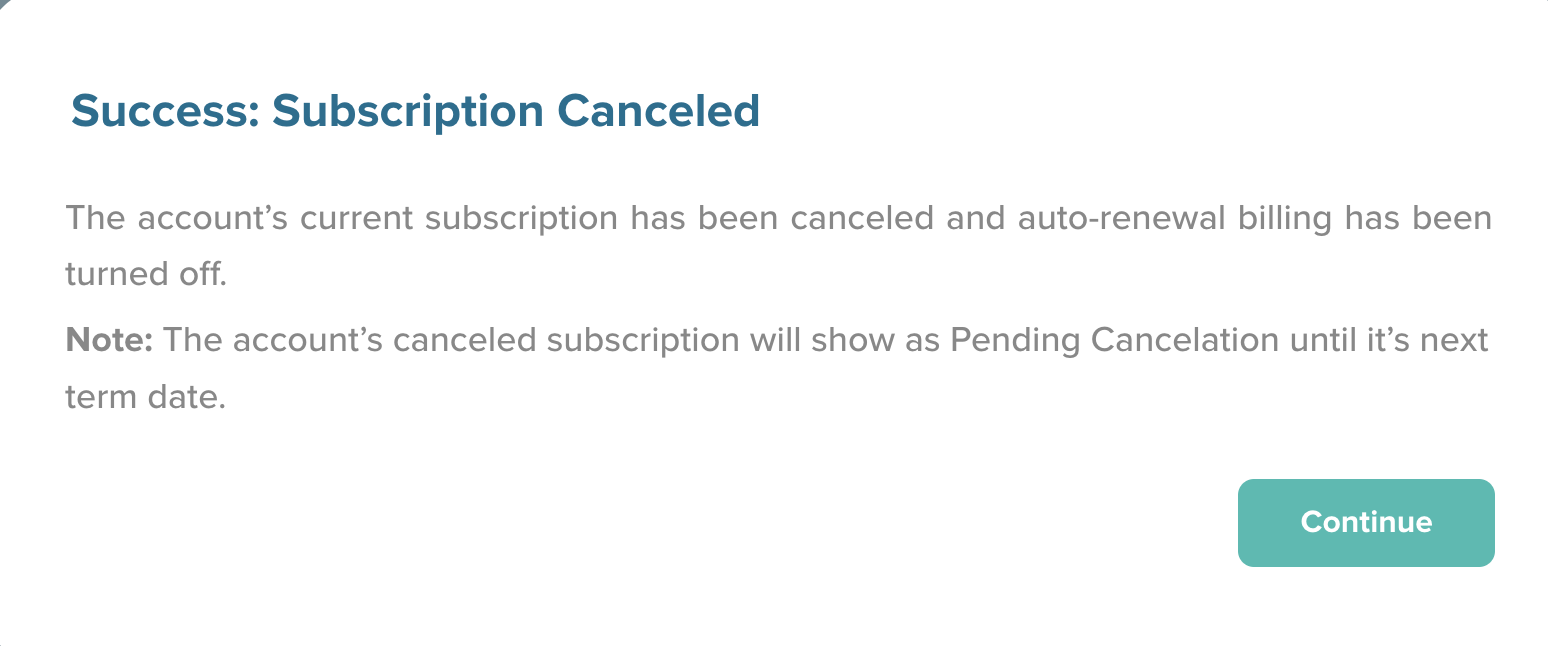
Reactivate Subscription Screen
After clicking the "Reactivate Subscription" link, you will be navigated to the "Reactivate Subscription" screen.
Clicking on the "Reactivate Subscription" button will quickly reactivate your account subscription.
Clicking the "Go Back" button will navigate you back to your Member Portal Account, and cancel all actions.
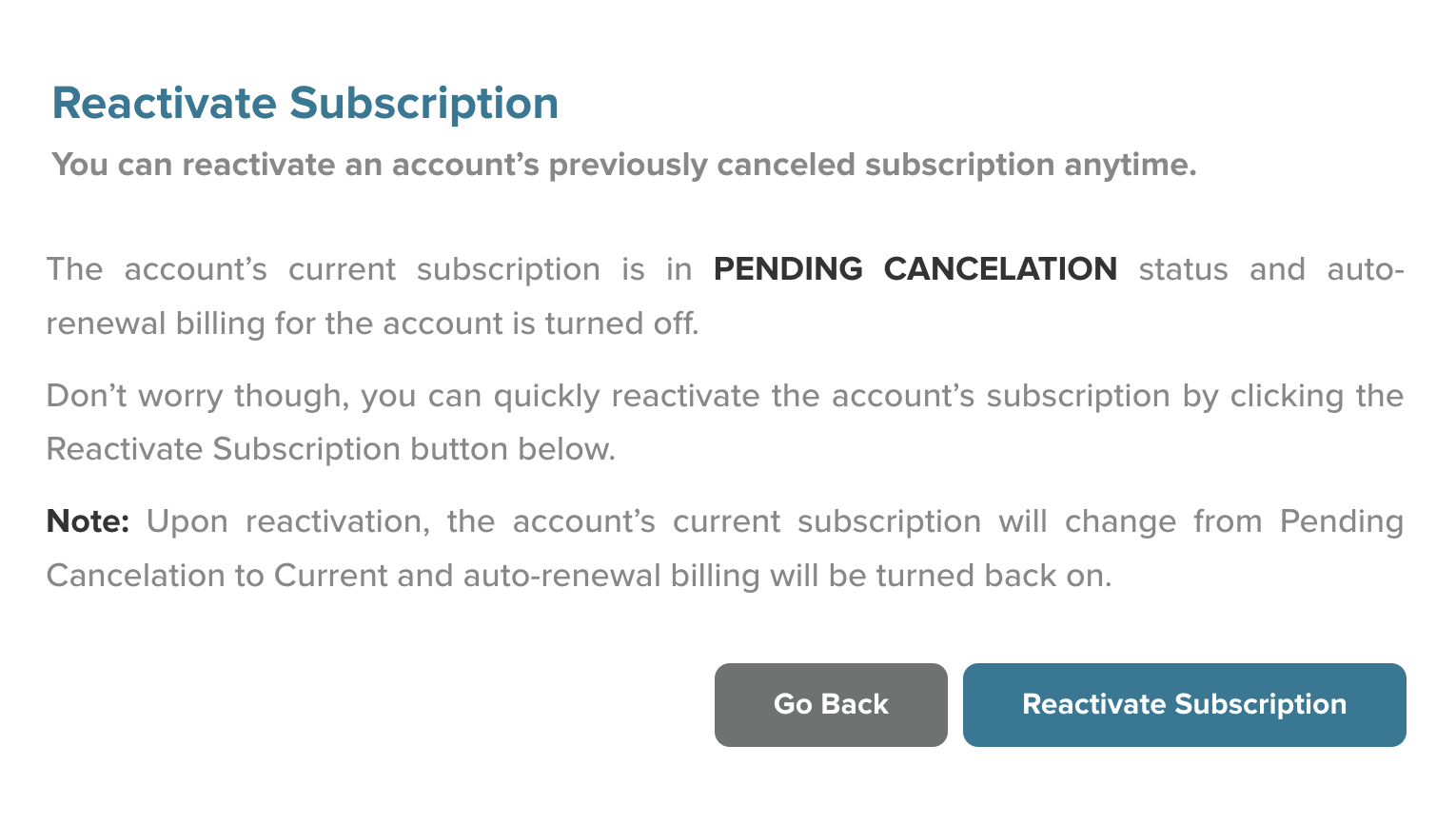
Success: Subscription Reactivated
Once you have clicked the "Reactivate Subscription" button, you will navigate to the Subscription Reactivated screen.
Click the "Continue" button to save all changes and reactivate your account.
Disable Auto-Renew Link
You can cancel your subscription by clicking the "Disable Auto-Renew" link to the right of the "Subscription Details" tab.

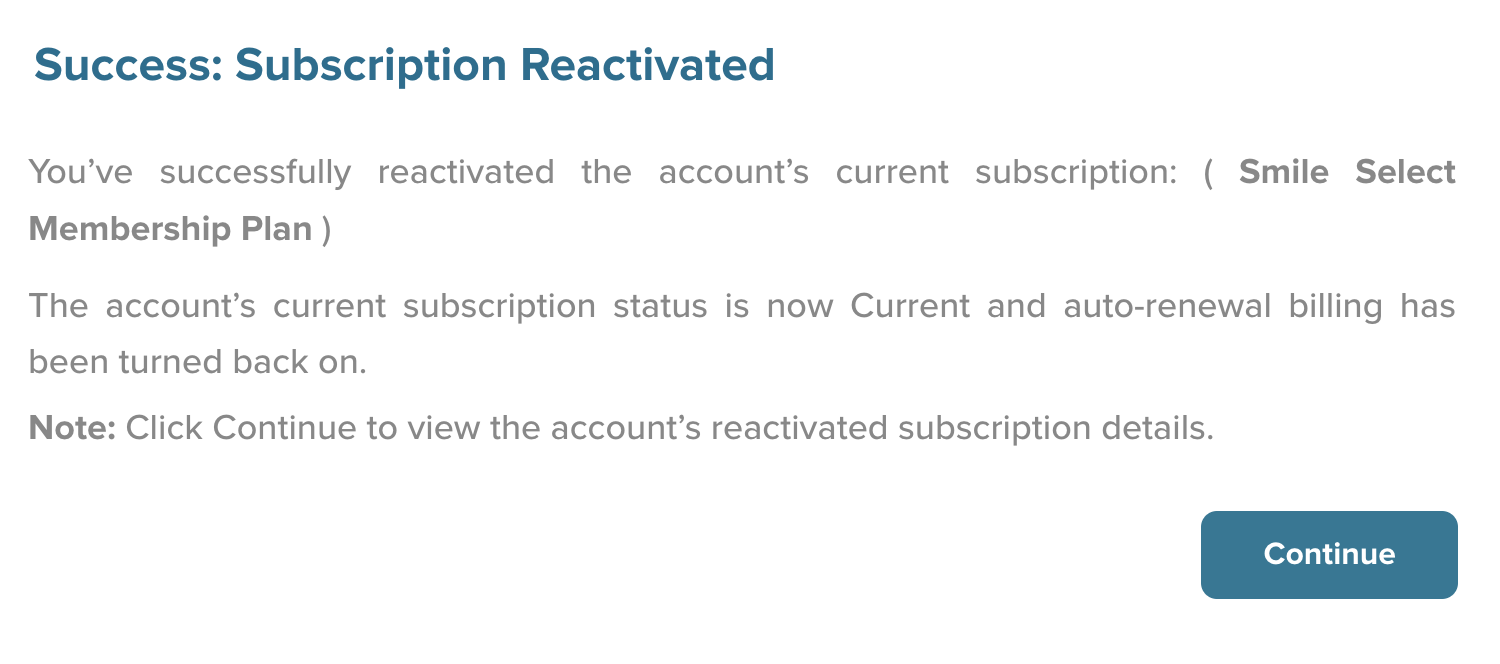
Disable Auto-Renew Screen
Clicking the "Disable Auto-Renew" link will navigate you to the "Disable Auto-Renew" screen.
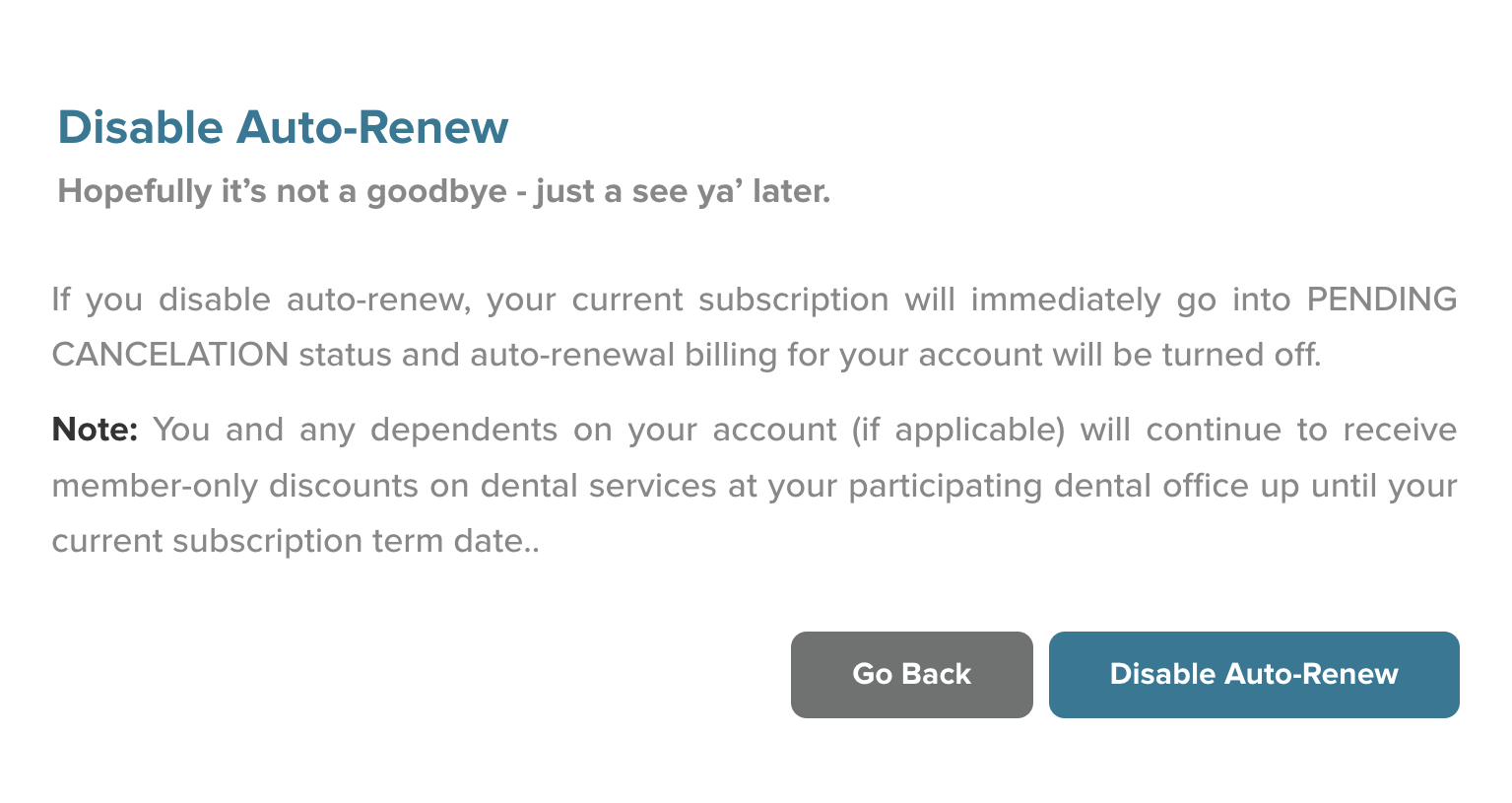
Success: Subscription Canceled
Clicking the "Disable Auto-Renew" button will cancel your subscription. Note that your account will show as Pending Cancelation until its next term date.