
Create a New Account
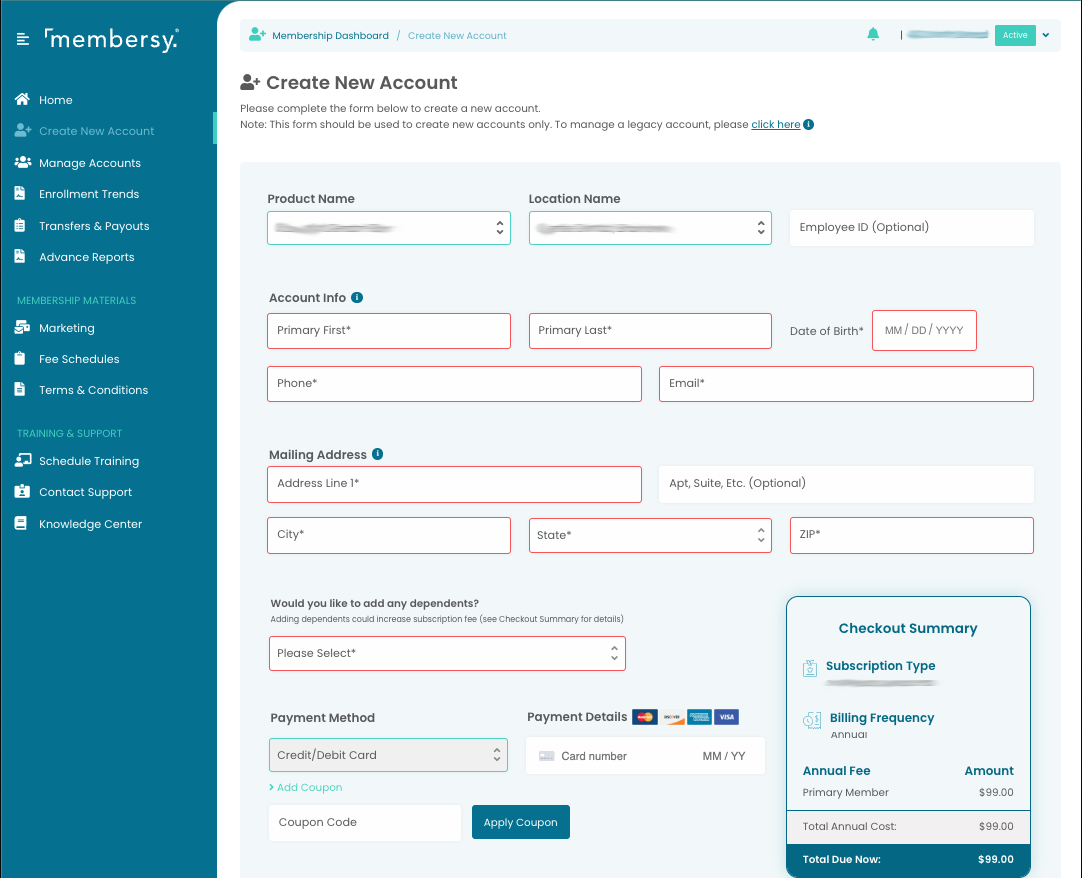
You can create new member accounts manually via the "Create New Account" screen in Membersy Connect.
Select the name of the plan in the "Product Name" dropdown, then select the location the account will be associated to. Next, add the primary account holder's details, including their mailing address. It is important to collect accurate contact information so that account communications will be received when it's time for renewal.
Next, select the number of dependents that will be on the account and fill in their details. You should see the total updated to the right in the "Checkout Summary".
Finally, enter payment details for the new account. Be sure to include any applicable discount codes. Click on the "Start Subscription" button to add the new account.
Please Note: Any new account paid by credit card will automatically be enrolled into our auto-renewal program.
Search Existing Accounts
Go to the "Manage Accounts" screen to search for existing members. Use the filters at the top of the screen to narrow your search down further. Click the "Apply Filters" button to see filtered results.
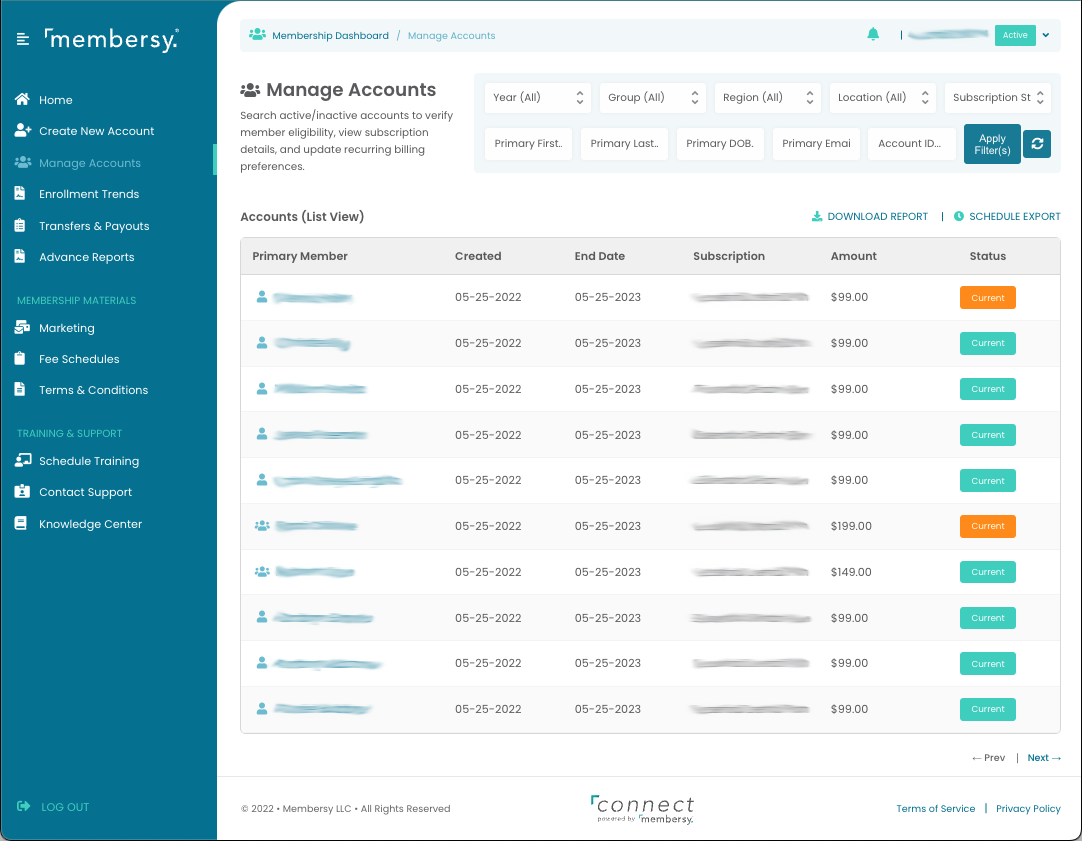
Each account is listed on its own line. The icon next to the primary account holder's name indicates whether the account has dependents. Hover over the primary account holder's name to show their email address. The "End Date" column shows the account's current subscription renewal date. The "Subscription" and "Amount" columns show the plan and overall price of the account subscription.
Finally, the "Status" column shows the account subscription's current status. A green "Current" status indicates that the account has a payment method on file and will auto-renew; an orange "Current" status indicates that the account has no payment method on file and will not renew unless manually paid by the account holder.
Export Account Data
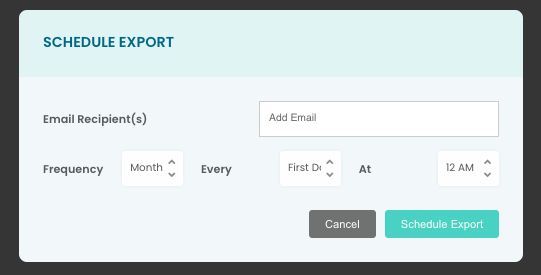
Click on the "Download Report" link to download a CSV of the filtered accounts. If you'd like to receive a scheduled export of members based on the filters you've selected, click on the "Schedule Export" link. You will be presented with a dialog. Enter a comma-delimited list of email recipients, the frequency, and timing of the scheduled export.
Manage Account
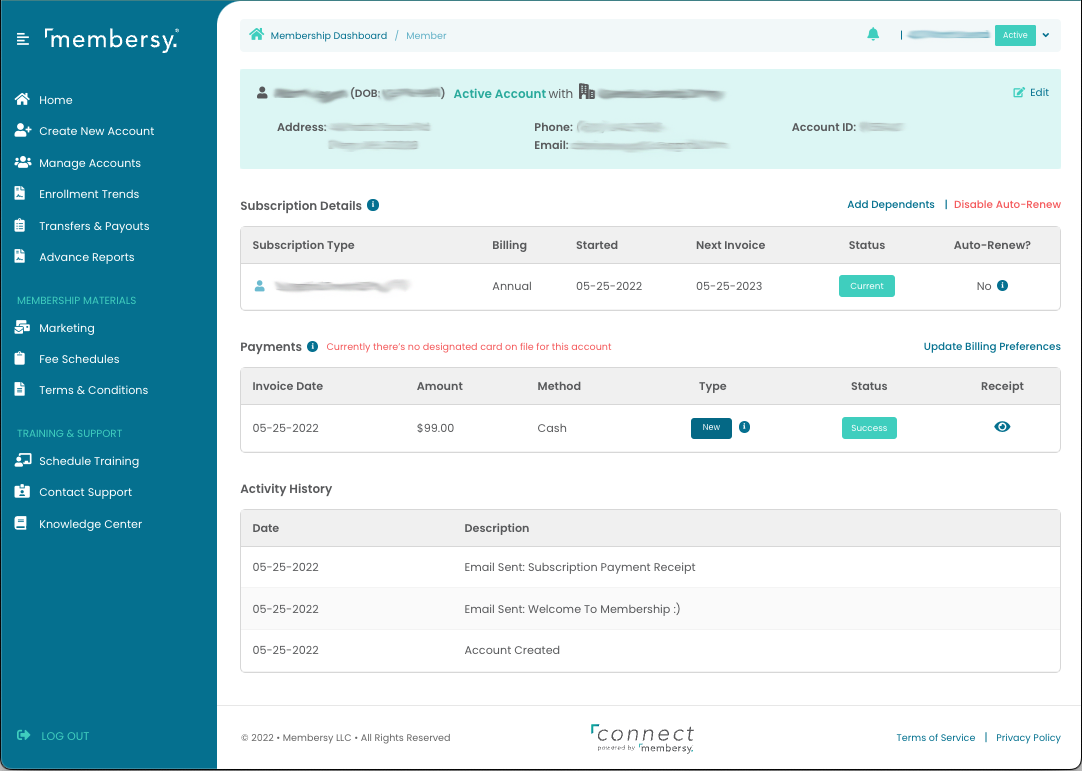
Click on a primary account holder's name on the filtered search results screen to view the individual account. The account screen shows all pertinent account details.
Account Details
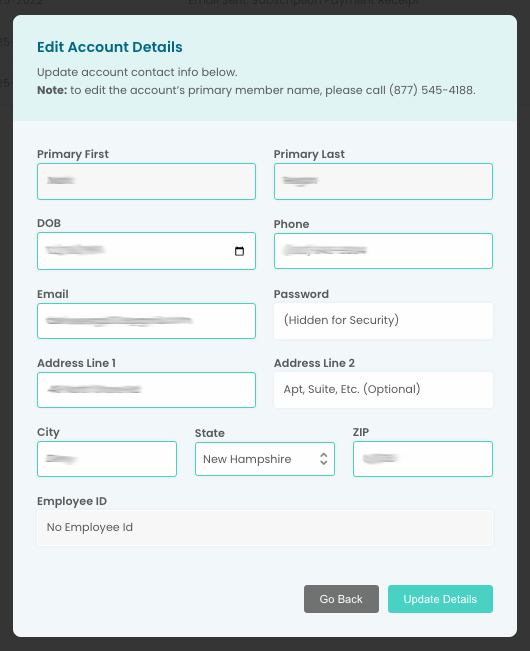
The section at the top of the screen contains the subscription summary and details for the primary account holder. Click on the "Edit" link at the top right to update this information.
Dependents
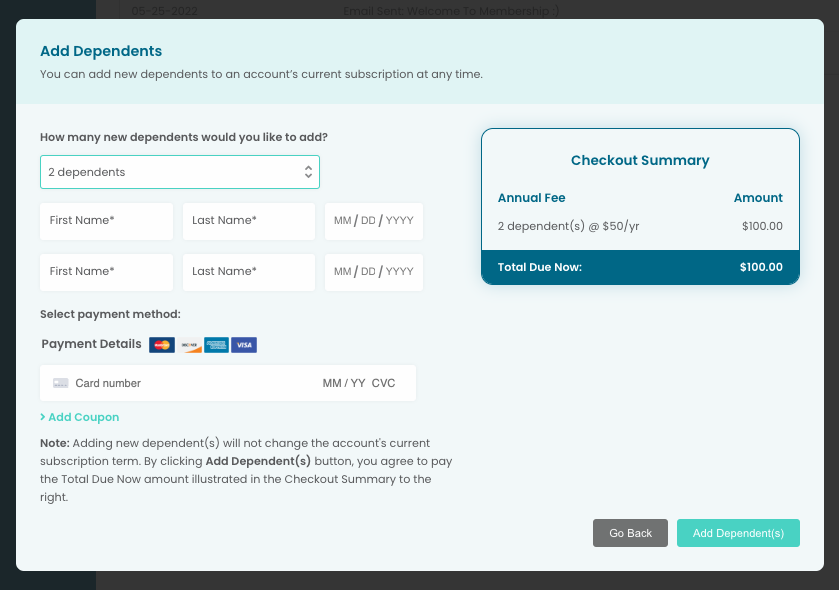
Any dependents on the account will be listed below the account details. Click on the "Add Dependents" link next to the "Subscription Details" heading to add a dependent. You will be prompted to select the number of dependents to add and enter payment information if applicable.
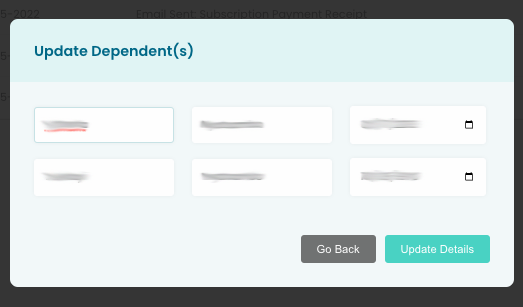
Click on the "Update Dependents" link to update the names and dates of birth for existing dependents. Removing the first and last name of a dependent will remove the dependent from the account.
Subscription Details
The "Subscription Details" section shows the current and previous subscriptions associated with the account.
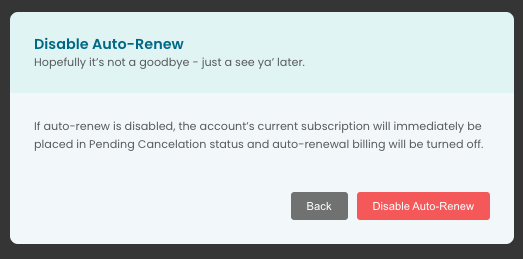
Click on the "Disable Auto-Renew" link to disable auto-renew for the account. This will cause the account to not renew automatically.
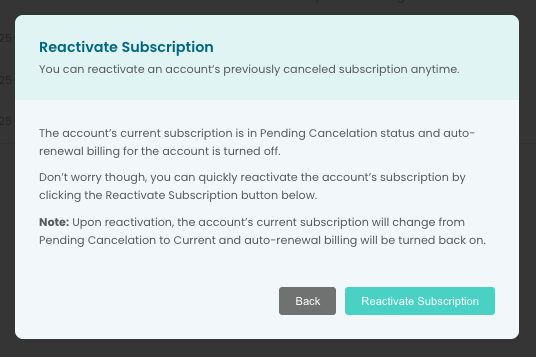
An account whose subscription is cancelled is eligible for reactivation. Click on the "Reactivate Subscription" button and follow the instructions to reactivate it.
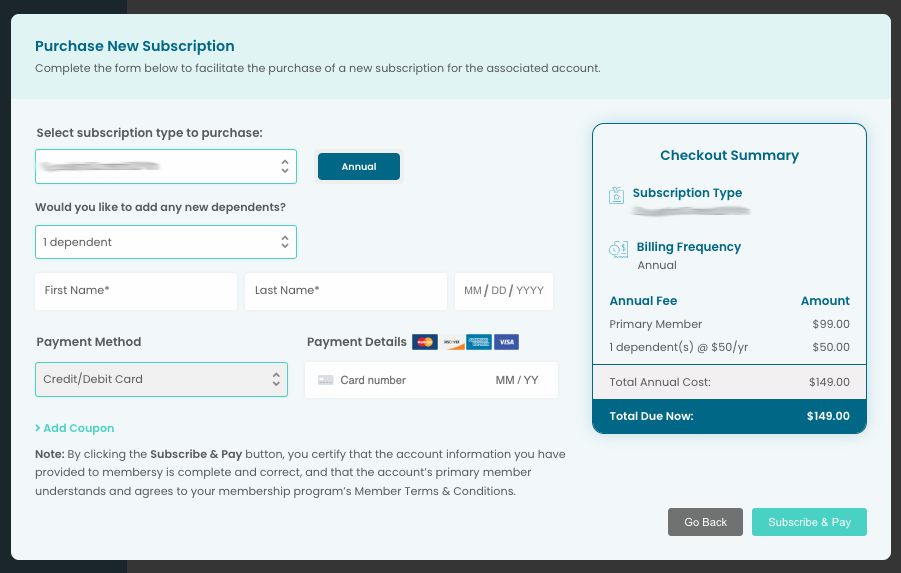
A new subscription can be added when an account's subscription has expired. Click on the "Purchase a New Subscription" link to add a new subscription to an account with no active subscription.
Payments
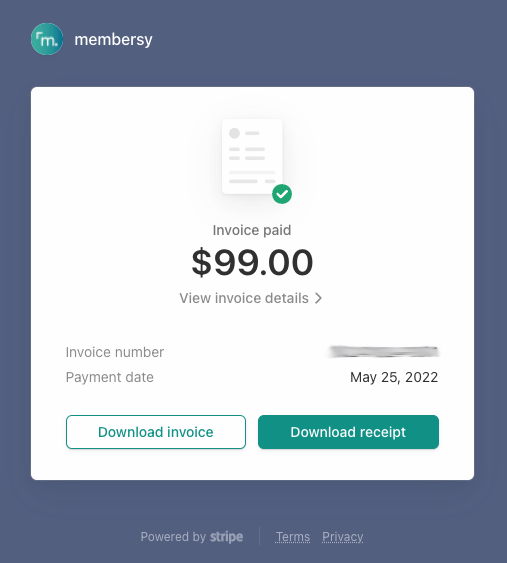
The "Payments" section shows all payments that have been made on the account. Click on the eye icon to view the receipt for a given payment. You will be taken an invoice screen such as the one below:
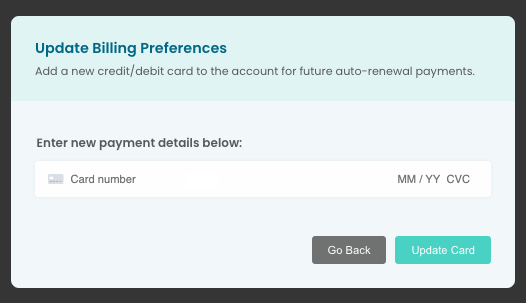
You may also update the account's payment method by click on the "Update Billing Preferences" link.
Activity History
The "Activity History" shows actions that have previously been taken on the account.